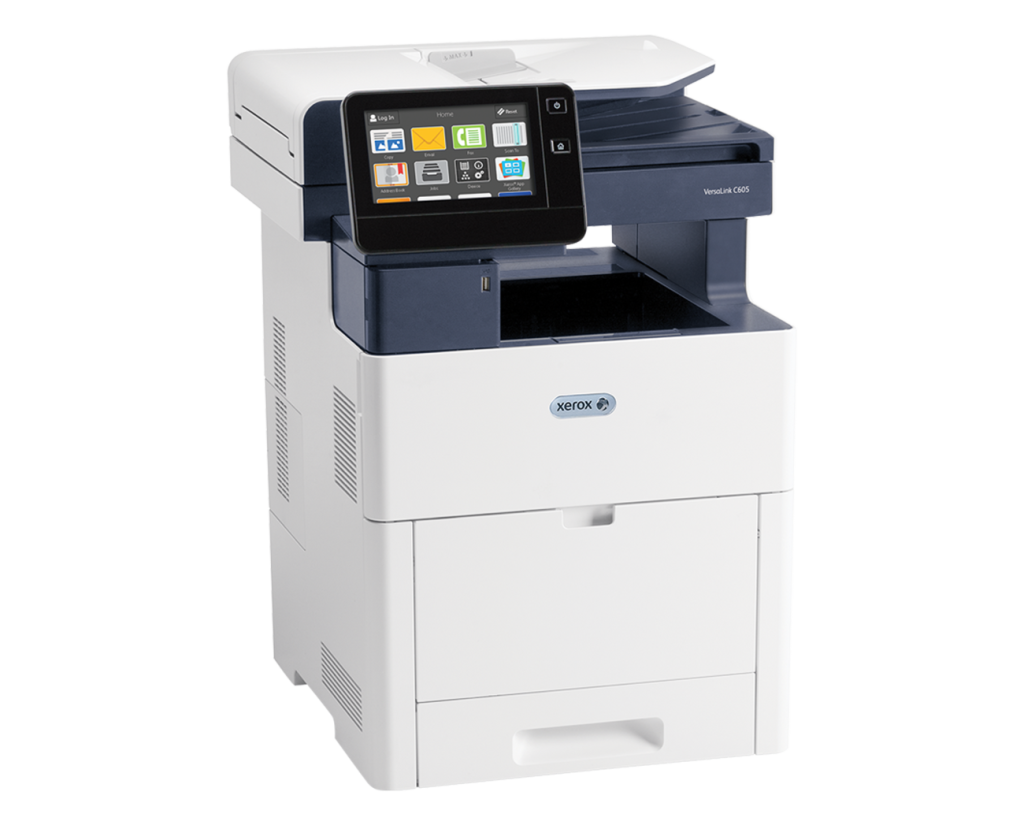
Clear print audit log Xerox printer procedures help businesses remove old print activity records and reduce the chance that confidential job information remains visible on a shared device. The process typically requires administrator access and can involve the printer’s touchscreen or Embedded Web Server, depending on the Xerox model.
This guide explains how to clear records safely while distinguishing Xerox job history deletion from deeper data-erasure functions.
What Is a Xerox Print Audit Log and Why Does It Matter?
A clear print audit log Xerox printer process does not necessarily remove every piece of information associated with a print or scan job. Audit records may be separate from stored documents, job history, remote syslog records, or information retained by print-management software. Understanding these differences prevents administrators from assuming that deleting one log completely erases all device activity.
| Record type | What it generally contains | May require separate action? |
| Audit log | Security and activity events | Yes |
| Job history | Recent job information | Yes |
| Stored jobs | Documents held on the device | Yes |
| Remote syslog | Copies sent to a server | Yes |
| Image data | Temporary or stored document data | Potentially |
For organizations handling sensitive information, clearing records should also be considered alongside applicable privacy and security policies. Regulations such as GDPR or HIPAA may create specific requirements depending on the organization, information involved, and applicable controls. Therefore, administrators should determine whether records must be retained before performing Xerox device log purge procedures.
How Do You Clear the Print Audit Log on a Xerox Printer?
The exact menu path varies by Xerox model, but the general process starts by signing in with administrator credentials. The administrator then opens the security or audit-log settings, locates the available clearing function, and confirms the deletion. Because Xerox interfaces differ across product families, the exact wording may appear as Clear Log, Clear Audit Log, or another similar option.
A typical on-device process follows these steps:
- Sign in as an administrator using the device’s Admin PIN or password.
- Open Device Settings, System Settings, or the applicable administration menu.
- Navigate to Security, Audit Log, or the corresponding log-management section.
- Review the available audit-log controls.
- Export the log first if the records may be needed later.
- Select Clear Log or the applicable deletion command.
- Confirm the action when prompted.
- Review the log afterward to confirm the expected records have been removed.
The same general principle applies when performing a clear print audit log Xerox printer task through an administrator interface, although the menu names can differ. Some devices may also require audit logging to be enabled before the audit-log management page displays all available controls. Administrators should avoid treating a simple log deletion as a secure overwrite of documents or stored image data.
Administrator note: A missing or disabled clearing option may indicate insufficient permissions, a device-specific restriction, or a different location for the required setting.
How Do You Clear Print and Scan Records Through the Xerox Embedded Web Server?
Many Xerox devices provide browser-based administration through an Embedded Web Server (EWS), while older documentation may refer to CentreWare Internet Services. The administrator first needs the printer’s IP address, which can usually be found through the device’s network information or configuration screen. After entering that address in a web browser, the administrator signs in and searches the security, audit, job-history, or device-log settings.
A typical remote-administration workflow includes:
- Find the Xerox printer’s IP address.
- Enter the address into a web browser.
- Sign in using administrator credentials.
- Open the relevant Security, Audit Log, or Job Management settings.
- Review available print, scan, and fax activity records.
- Export records that must be retained.
- Select the applicable Clear, Delete, or purge function.
- Confirm the change and verify the result.
The clear sensitive document print history Xerox process can differ from clearing a security audit log because job history may be managed separately from security records. Likewise, the question how do I remove past job history from Xerox printer dashboard may require a job-history setting rather than the audit-log menu. Administrators should therefore identify exactly which record needs to be removed before selecting a deletion command.
Keeping Xerox Print Records Under Control
Proper clear print audit log Xerox printer management requires more than deleting a visible history list. Administrators should first determine what type of record is being removed, whether it must be retained, and whether additional copies exist on servers or management systems. For businesses handling confidential documents, clear sensitive document print history Xerox procedures should be part of a broader device-security policy rather than an isolated maintenance task.
Clear Choice Technical Services can help businesses evaluate copier and multifunction printer security, maintenance, and management needs. Its team can help identify the right equipment and support approach while helping organizations manage print environments more effectively. For businesses asking how do I remove past job history from Xerox printer dashboard, professional guidance can also help determine whether the issue involves job history, audit logs, stored documents, or deeper data-erasure controls.
Need help managing a business copier or Xerox device? Call Clear Choice Technical Services at (317) 210-4600 to discuss equipment, service, security, and print-management needs. Businesses can also request a free demo trial to evaluate solutions before making a decision.